 skemyOpen Skemy
 Know what reaches every switch port.
I/O Mapping shows the front panel of every switch in the project: free and occupied ports, the connected device and cable, the assigned VLAN and the PoE power drawn.
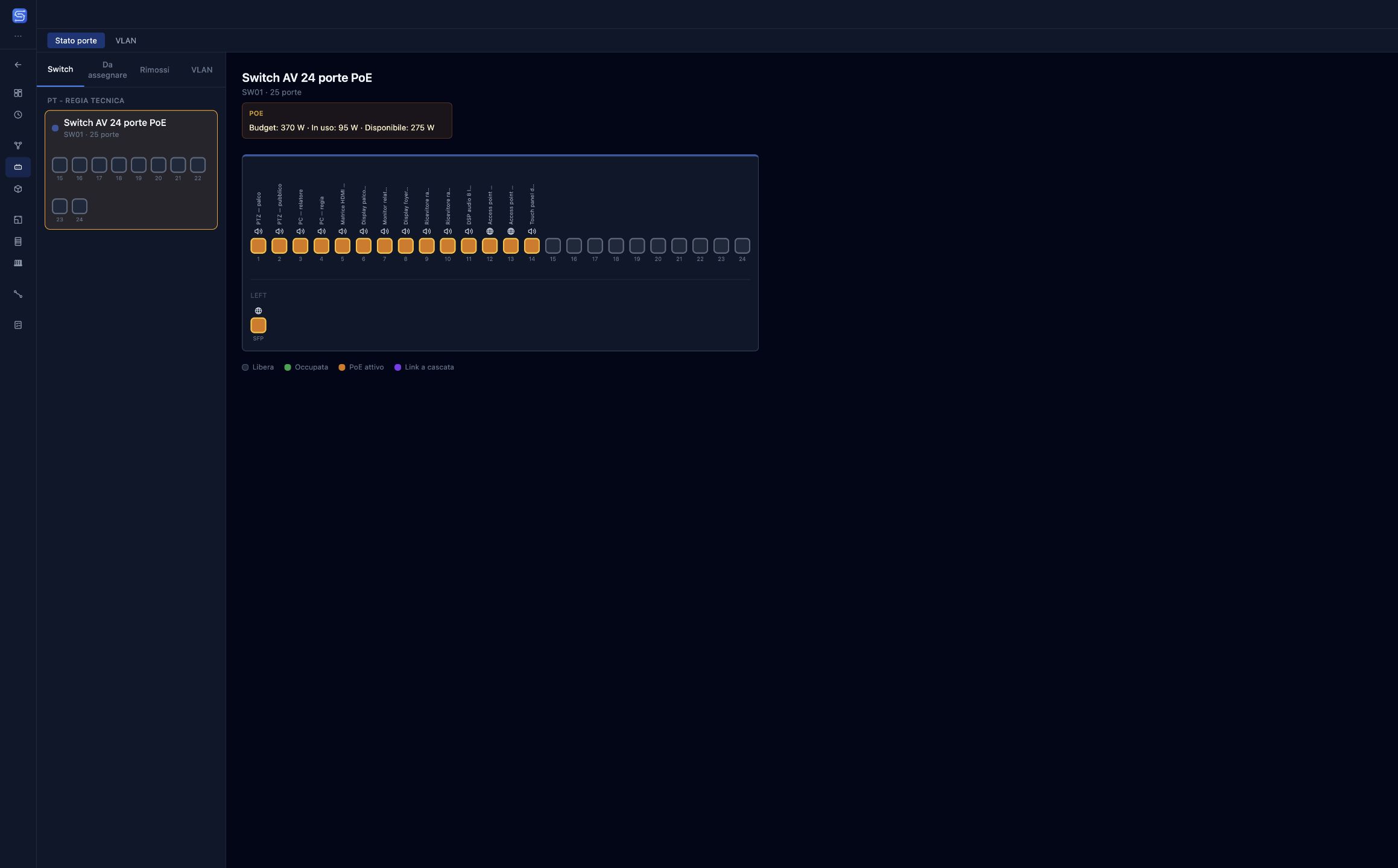
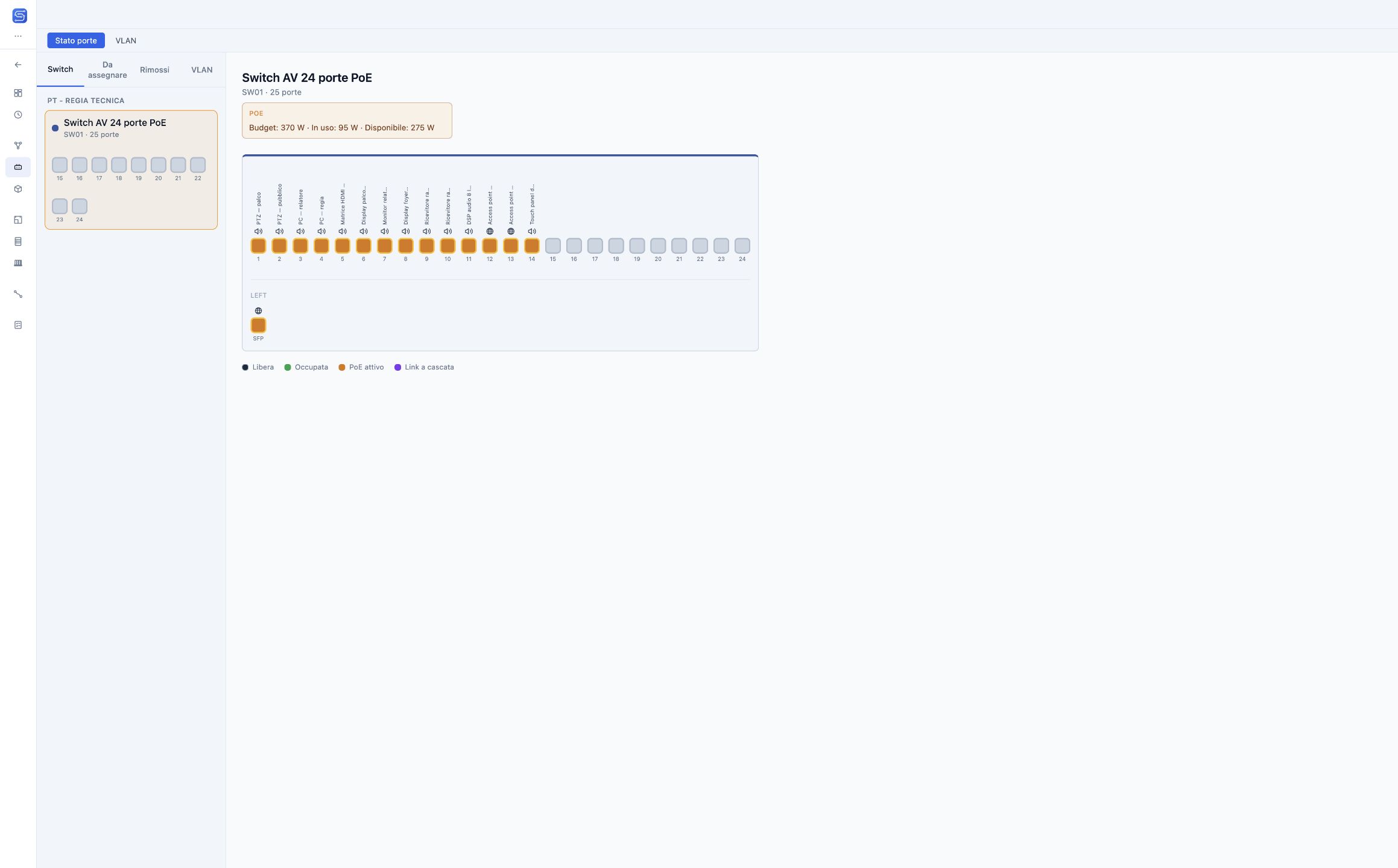
Every switch front panel
Pick a switch from the list, grouped by zone, and review its ports as they appear on the front panel. Each port shows whether it is free, occupied, powering a PoE device or linking to a cascaded switch. Labels can show the connected device’s name, code or cable, or the watts drawn by each PoE port.
Connect by dragging
Drag from a free port to a compatible port to create a connection, or move it to another port. The To assign list collects, zone by zone, the devices that still have free network ports: drag them onto the switch ports to complete the mapping.
VLANs at a glance
In the VLAN view each port takes the colour of its assigned VLAN, and ports without a VLAN stay neutral. The project VLAN catalogue defines number, name and colour, and you can assign a VLAN to several ports at once by selecting them together.
PoE budget
For each switch, a summary compares the PoE budget with the power required by the connected devices. The figures depend on the data entered in the project: always check manufacturer specifications before sizing.
Drawings and DXF
From the Export / Print menu you can produce one PDF with every switch in the project, or only the current switch, the switches in a zone or a single switch, with the title block. Front panels can also be exported to DXF.
In the same project
A connection created in I/O Mapping is the same connection as in the schematic: it appears in System Schematic and in the cable schedule with its identifier. The VLAN catalogue is also shared across the whole project, so ports and devices refer to the same networks.